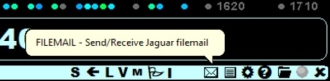
FILEMAIL
JAGUAR PRO ONLY
FILEMAIL offers an easy way to transfer files between your computers: no need to use email/ftp/cloud/dropbox/network shared folders/USB sticks, etc. anymore for quick small file transfers.
HOW TO
Sending FILEMAIL:
-
Click TOOLBAR > FILEMAIL (the envelope icon)
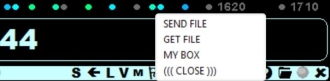
-
Select "SEND FILE" from the popup menu, and you will see the standard Windows file selection dialog.
- The selected file will be transferred.
Receiving FILEMAIL:
- Click TOOLBAR > FILEMAIL and select "GET FILE" on the computer where you want to receive the file(s)
- Files will be downloaded to the "FILEBOX" folder located in your JAGUAR folder, and this folder is opened automatically
- Tip: Remote users can use FILEMAIL for transferring files from the remote JAGUAR computer to the local JAGUAR computer
- Note: WAV clips are always automatically converted to MP3 when FILEMAIL is used
Opening the FILEMAIL folder:
- Click TOOLBAR > FILEMAIL and select "MYBOX"
Using shared FILEMAIL
You can send audio clips from CLIPPER to your radio team mates for evaluation as follows:
- Upgrade to the CUSTOM level and add parameter TEAMBOX = Name-of-your-team (for example TEAMBOX = TEAM_X)
- When using TEAMBOX, CLIPPER > SEND>FILEMAIL sends the audio clip to the TEAMBOX instead of your private FILEBOX
- When using TEAMBOX, the TOOLBAR > FILEMAIL popup menu looks like this:
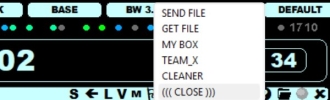
- Select "TEAM_X" if you want to view the files in the TEAMBOX
- Select "CLEANER" if you want to delete all the files in the TEAMBOX
- Note: FILEMAIL > SEND FILE still sends files only to your own FILEBOX, even if you have defined
TEAMBOX (only CLIPPER can send files to TEAMBOX).