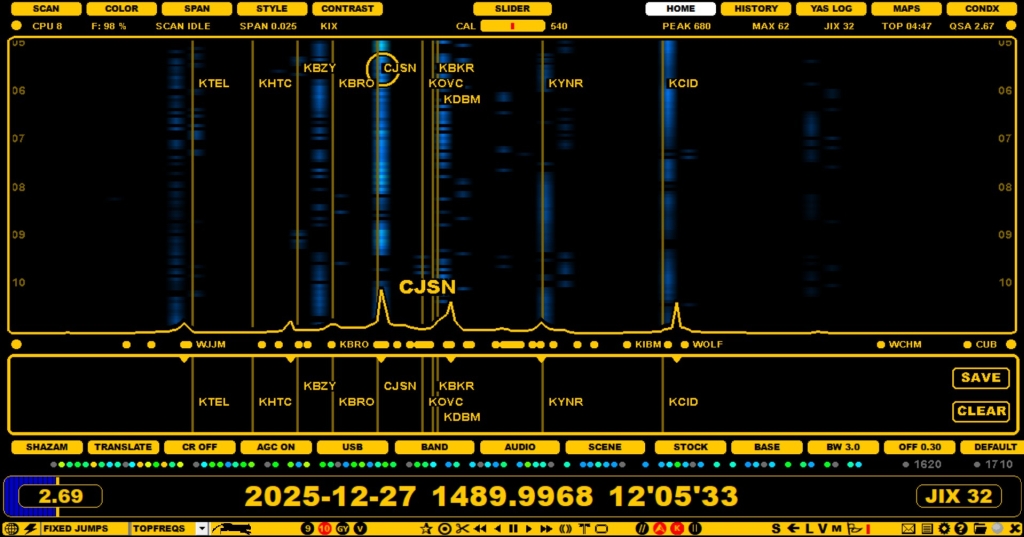
Even though it is highly recommended that you share your offset observations with other DXers (using the "public offsets"), JAGUAR also offers an option to collect and save offsets locally to a local file. These private offsets are not uploaded to the server.
Instead of showing the private offsets as FLAGS, your private offset collection is displayed as short POLES (on the SCENE window) and/or as long POLES on the main spectrum display.
The user can display any combination of the public offset FLAGS / private short POLES / private long POLES at the same time. The following example shows the private offset collection on 1490 as short POLES (in SCENE) and long POLES.
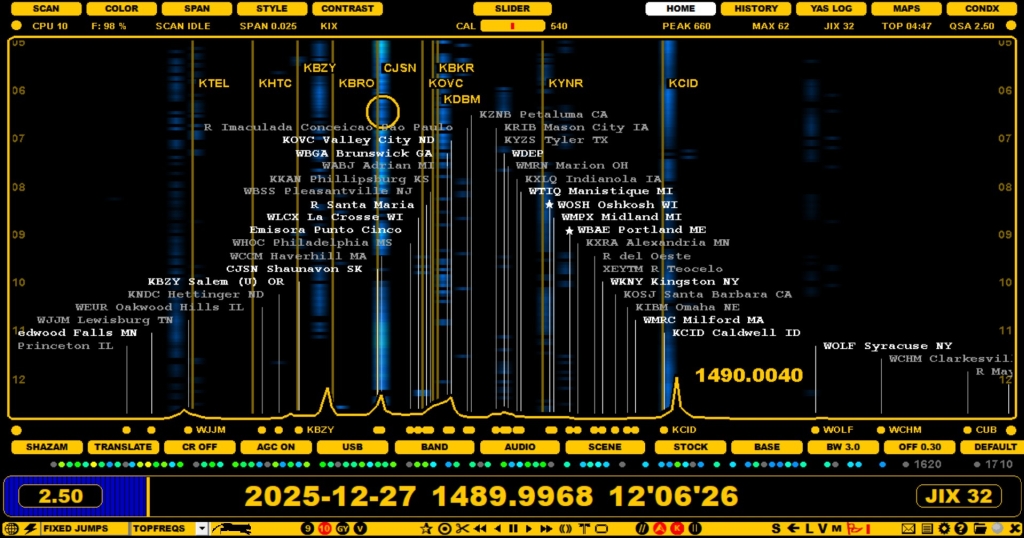
Offset monitoring/analysis/updates require that calibration is on spot (see KALIBRATE).
SCENE window is used for adding/maintaining/deleting your private offsets. You can open (and close) SCENE by clicking AUDIOBAR > SCENE or by pressing the keyboard key "B" repeatedly until the SCENE window appears
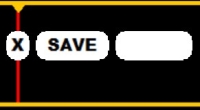
Easy: just click the offset position on the SCENE window and you'll get a small window.
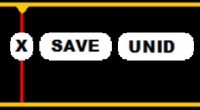
Add the name of the station or just type UNID if you haven't identified it. "UNID" serves just a marker for further studies.
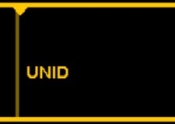
After clicking SAVE, the system adds a private offset to a local text file "OFFSET.txt", located in the Jaguar installation folder.

If you want to show the private offsets as an overlay on the spectrum displays, please enable TOOLBAR > POLES.
If you want to delete any private offset, move the mouse cursor over the short pole on the SCENE window and right click.
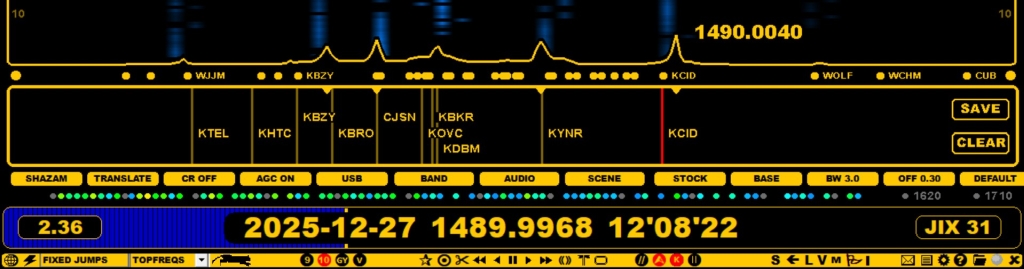
If you want to move any private offset to a new position, move the mouse cursor over the short pole on the SCENE window, keep the left mouse button down for a while (until "DRAGGER" banner appears) and drag the pole to the new position. Here KCID has been drifting and the pole is dragged to the new position => after that also SPECTOR can auto-identify the carrier.
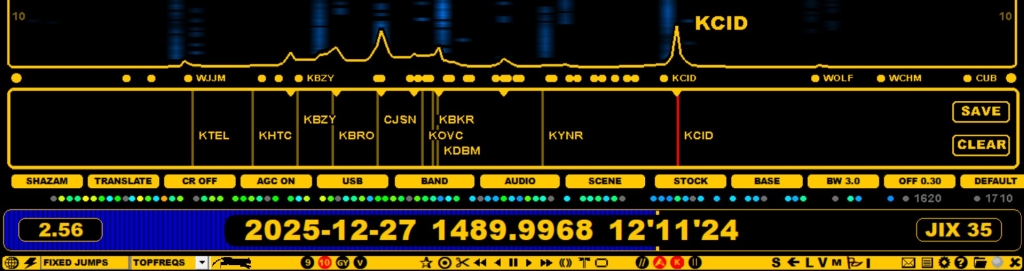
If you want to change the text for any private offset, move the mouse cursor over the short pole on the SCENE window and click the pole: the small edit window appears. Type a new name and click SAVE.
User's private offsets are maintained in the OFFSET.txt file, located in the Jaguar installation folder. You can edit that file also manually using the standard Notepad (TOOLBAR > FILES > MY OFFSETS).
The OFFSET.txt file contains "frequency (with four decimals), short name (max 9 chars)"-pairs, one pair per line, for example
1240.0022, KDLR
Editing the OFFSETS.txt file is straightforward so your own offset collection can be maintained also this way without making them "public".

If you want to register all the visible carriers to the system, you can do it with one click. Move the mouse cursor to the right edge of the SCENE window and click the SAVE button. This function saves all the current carrier locations (displayed as small triangles at the top of the SCENE window) to an internal file and shows them as narrow pale blue poles. You can click that SAVE whenever you want to refresh the offset scene. Each time you click SAVE, the color gets "stronger" for the existing offsets, while the new ones are saved as "pale blue". These narrow poles serve you as monitoring the overall offset positions. Naturally you can click any of them after identifying them and after giving a name to them they will become "official" private offsets. Note: you can click "CLEAR" anytime to remove those narrow poles - "CLEAR" does not have any effect for the "official" private offsets.
JAGUAR uses your private offsets for the AUTO-ID function: if there is a perfect/almost perfect match for the SPECTOR peak position within your private offset collection, JAGUAR shows the name listed for that private offset next to the SPECTOR peak (instead of the numeric offset value), just as "CJSN" and "KCID" in the images above.