 ............
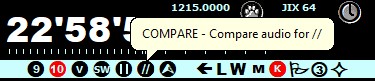
This is a function that compares the two last-tuned frequencies for checking parallel (//) programming. JAGUAR keeps the previously tuned frequency always in memory.
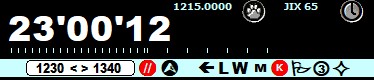
You can enable/disable the COMPARE mode by clicking TOOLBAR > COMPARE or pressing the keyboard key "/". When the COMPARE mode is enabled, a small COMPARE window is opened and your current frequency becomes the "master frequency" and the previous frequency becomes the compare frequency. Clicking the COMPARE window toggles between these two frequencies.
You can still tune to new frequencies when the COMPARE mode is enabled. In this case the master frequency remains intact but the comparison frequency is changed accordingly when tuned => you can quickly compare the "master frequency" to several other frequencies
............
If you define a LOOP when the COMPARE mode is active, JAGUAR changes the frequency automatically when the LOOP ends (easy to detect // using short loops).
COMPARE PRESETS
When you tune to fq1 and always want to compare it to some specific frequency fq2, you can use the COMPARE.txt file for maintaining pre-defined // frequency pairs: create simple text file "COMPARE.txt" (using Notepad etc.) and add lines simply as
fq1,fq2
You can also create/edit this file directly from JAGUAR, if you open TOOLBAR > TEXTPADS > COMPARE.
You can add only one "compare frequency" for each MW frequency. This kind of system offers the quickest way to check // programming: if you click TOOLBAR > COMPARE (//) and a "parallel frequency" is found in the COMPARE.txt file for the tuned frequency, JAGUAR jumps directly to that fq2. Another COMPARE click restores the original playback frequency.
Instead of the pre-defined compare frequency (fq2), you can write the URL of the // webstream or the URL of any Kiwi receiver near that target station you are hunting for. This option makes sense only when using the COMPARE function in the LIVE mode.