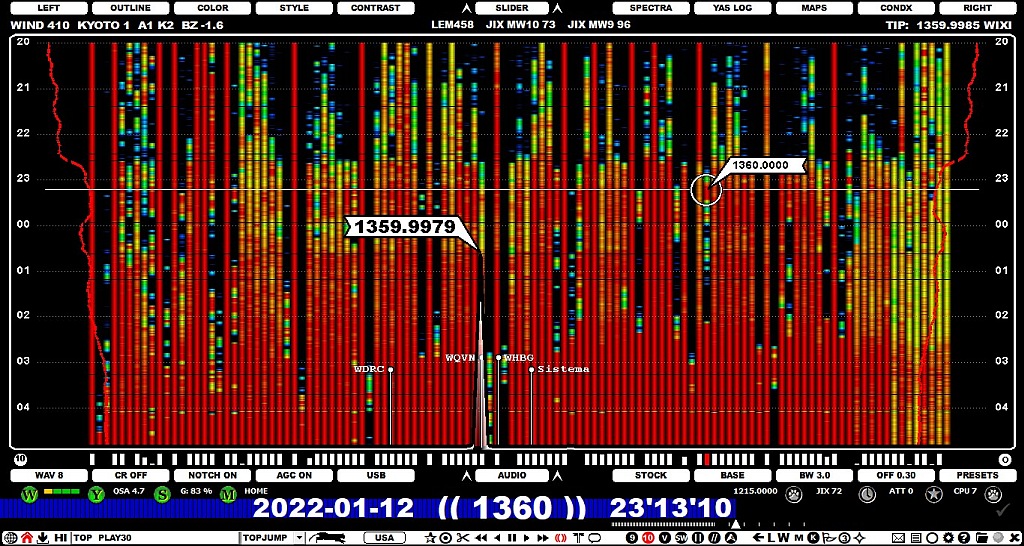
YAS is the abbreviation of "Yet Another Spectrum", and it is the cornerstone in JAGUAR's ability to monitor the MW band around the clock. YAS uses a quick "overview FFT" method which creates and saves MW area snapshots.
YAS saves a MW snapshot once a minute (or optionally in every 30 seconds) to a file called YAS.LOG. This file can be found in the folder where the recordings are being saved. Besides the YAS data, this file also contains TRACKER data (see GUIDE > TRACKBAR for details).
The YAS.LOG data is displayed on YAS screens. The YAS screens are part of JAGUAR's main screens, i.e. they are included in the WALLPAPER (W) rotation. The FFT used for YAS logging can pick up carrier peaks on most 9/10-kHz frequencies. However, some signals may not be detected because of the FFT used. For instance, if there is a powerful carrier 1 kHz away, it may block the wanted signal, and then this frequency may remain "blank" on the display. Another example: WWKB on AM 1520 is one of the most common U.S. stations in Europe but it may not be visible in YAS because there is often a powerful carrier on 1521 kHz, and, as a result, the peak of WWKB will be blocked by the more powerful signal.
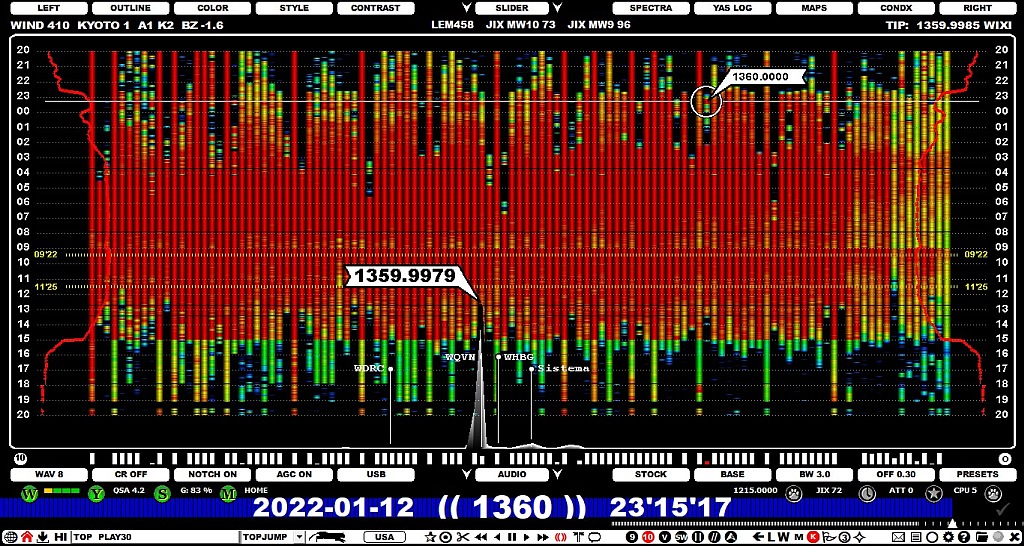
The YAS screen displays a colored bar for each MW frequency, and the number of bars is determined by the selected frequency stepping (9 or 10). YAS makes it very easy to spot overseas openings, fading up and down. Any overlapping 9/10-kHz frequencies can be hidden to make it easier to visualize true overseas openings. The contrast of the YAS display is also customizable.
Overlapping frequencies in MW9 and MW10 removed:
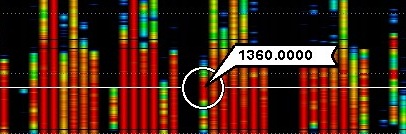
or the strongest signals on the MW dial can be highlighted as white
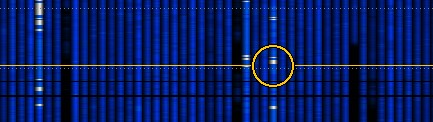
YAS will reveal station sign-on/sign-off periods for strong stations as the color bars will appear/disappear on the screen. It can also show daytimers signing on/off, e.g. resulting in a sudden change in the bar color at sign-on/sign-off times.
Note that SCOPE (see SCOPE for more details) uses the same FFT algorithm as YAS.
JAGUAR is designed for a 24/7 operation, and the YAS data collector is part and parcel of a MW DXer's toolkit.
The YAS LOG services are configured via SETTINGS > YAS LOG. It can be invoked by clicking the STATUSBAR > Y button.
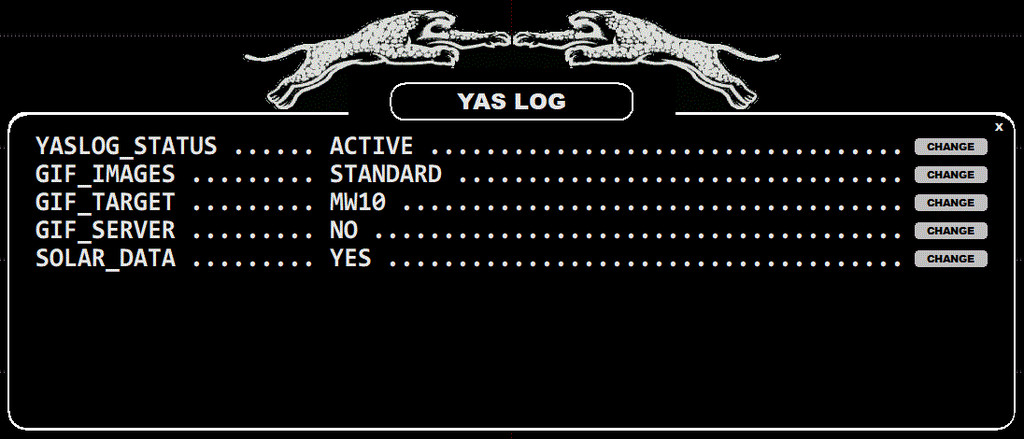
The YASLOG window contains the following options:
YASLOG_STATUS: If ACTIVE, the Y button color is green and JAGUAR creates/updates YASLOG, one of the main functions in JAGUAR. Normally there is no reason to disable this feature (the Y button color is gray if this service is disabled). If ACTIVE+ is selected, the data collection interval is 30 seconds (instead of 60 seconds).
GIF_IMAGES: STANDARD | ZOOMED | NO. If STANDARD or ZOOMED is selected, JAGUAR creates/updates the daily thumbnail images from YASLOGs. The thumbnails ("x.gif") are saved in recording-day folders, and can be uploaded to the kapsi.fi server if "GIF_SERVER" is enabled. The STANDARD gif contains one snapshot line per two minutes, the ZOOMED option gives one snapshot line per one minute starting from 22 UTC. Using the ZOOMED option, your x.gif files show less hours per day but with a better resolution.
GIF_TARGET: MW10 | MW9. This parameter defines the "frequency selection" in the YAS thumbnail images.
GIF_SERVER: YES | NO. If enabled, JAGUAR automatically uploads the YAS LOG thumbnails to the server at kapsi.fi. The thumbnails on the server are refreshed once an hour, and they can be viewed with any browser using this URL: http://jaguars.kapsi.fi/jagnet/jagthumb_12345678.gif . Replace "12345678" with your JAGUAR key, as shown in INFOBOX.
SOLAR_DATA: YES | NO. This is not related to YAS LOG but is an independent feature: if enabled, JAGUAR fetches the current space weather data from the internet, refreshing the data every 15 minutes. This data is shown next to the W button and on the SPACE WX applet (more information in the APPLETS help).
The YAS screen itself can be invoked in the following ways:
You can also leave the YAS screen using the methods above.
The YAS screen is zoomable, scrollable, draggable and clickable. This is all that you need for having the full control of the entire MW dial. The more you have recordings on your disk, the better!
ZOOMING. Just move the mouse to the right edge of the YAS screen (ZOOMFRAME), and click (or scroll with the mouse wheel). The YAS zoom level will change from a very detailed display to a full day overview, and back.
One of the YAS LOG zoom levels (full day overview):
SCROLLING. Move the mouse to the YAS area and scroll YAS up/down with the mouse wheel.
DRAGGING. You can relocate the visible area of the screen up/down by dragging/dropping the canvas to the desired position. This function does not change the loaded data content but only moves the data to the desired position on the screen.
CLICKING. A true point-and-shoot service is available. When you move the mouse over the YAS screen, YAS will show a frequency-timestamp pair, based on the location of the mouse. If the mouse cursor's color is bright, a recording exists at that time point, and you can jump to that frequency/time with a mouse click.
YAS LOG also displays the JIX CURVES (see JIX for details), i.e. red curves on both sides of the screen and their corresponding values within a red JIX ball.
Don't forget those two important controls for customizing the YAS display on SLIDER: STYLE (GAPS > FULL > PEAKS) and CONTRAST (spectrum color strength).